Moog Messenger | Firmware Update
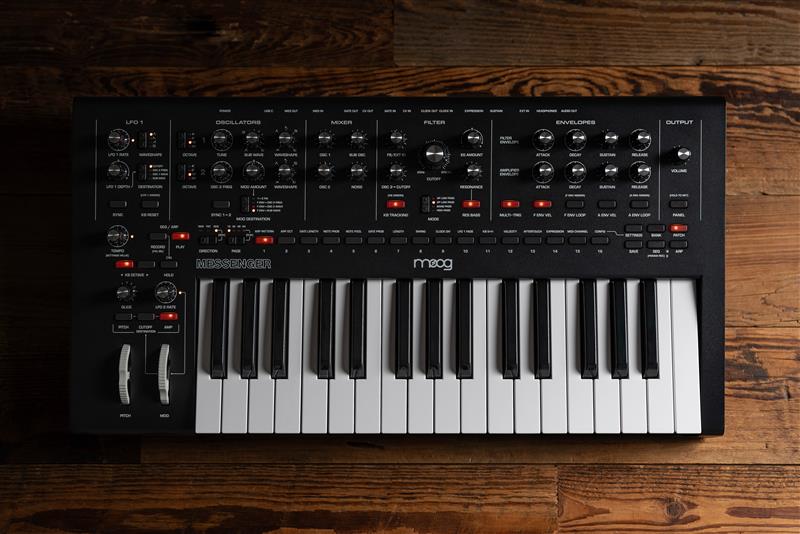
Keeping up to date with the latest firmware can improve the reliability of your synth, and expand it's functional capabilities.
Firmware Update Procedure
- Download the latest firmware version found HERE.
- Power on you Messenger. Ensure you are using the original power supply (12V DC, center positive).
- Connect your Messenger to your PC/Mac via a USB C cable.
- Once the Messenger is connected to your computer, run the firmware updater program by either opening the .dmg file (Mac) or running the .exe file (Windows). Follow the on-screen instructions to install. When finished, you may disconnect Messenger from your computer.
A video outlining the process can be found HERE.
Troubleshooting
If you find your Messenger is not powering on, especially after attempting a firmware update, please try the following procedure to reinstall the latest firmware.
- Download the latest firmware update found HERE.
- Connect the Messenger to your computer with a USB cable.
- Avoid using any hubs or adapters for the best results.
- Try an alternative USB cable & port if you are having issues with connectivity.
- Hold down the PITCH and AMP buttons in the bottom left side and continue to hold the buttons while powering on the Messenger.
- Open the firmware updater application and it should recognize your Messenger. Run the firmware update and follow the instructions on the screen.
Once the update has been sent, if the updater is claiming the Messenger "is not responding" after the update, follow the instructions on-screen to disconnect and reconnect the USB cable to the Messenger and try the update again. The update should then be fully successful.
It is important that you do not use a power supply that was not supplied with the keyboard, and that does not match the requirements for the product.
Was this article helpful?
That’s Great!
Thank you for your feedback
Sorry! We couldn't be helpful
Thank you for your feedback
Feedback sent
We appreciate your effort and will try to fix the article